

Tracking conversions is the backbone of any successful digital marketing strategy. Without proper conversion tracking, you’re essentially flying blind—unable to measure what’s working, what’s not, and where to optimize for better results.
Google Analytics is one of the most powerful tools for monitoring user behavior and conversions on your website. Whether you want to track form submissions, purchases, phone calls, or downloads, setting up conversion tracking correctly ensures you get accurate, actionable data.
In this guide, we’ll walk you through:
-
What conversion tracking is and why it matters
-
Step-by-step instructions to set up conversion tracking in Google Analytics Universal and GA4
-
How to view and analyze your conversion data
-
Answers to common FAQs about Google Analytics conversions
By the end, you’ll know exactly how to track conversions—the right way—so you can make data-driven decisions and grow your business.
What Is Conversion Tracking in Google Analytics?
Conversion tracking in Google Analytics refers to the process of measuring when users complete desired actions (conversions) on your website or app. These actions can vary depending on your business goals and may include:
-
Purchases (Ecommerce transactions)
-
Form submissions (Contact forms, lead gen forms)
-
Phone calls (Click-to-call buttons, call tracking)
-
Downloads (PDFs, eBooks, software)
-
Sign-ups (Newsletters, memberships, trials)
-
Page views (Key landing pages, thank-you pages)
Google Analytics tracks these conversions using:
-
Goals (In Universal Analytics)
-
Events marked as conversions (In GA4)
By setting up conversion tracking, you can:
✔ Measure ROI from marketing campaigns
✔ Identify high-performing traffic sources
✔ Optimize underperforming pages
✔ Improve user experience to boost conversions
Why Is Conversion Tracking Important?
Conversion tracking is essential because it transforms raw data into meaningful insights. Without it, you have no way of knowing whether your marketing efforts are driving real business results. Here’s why conversion tracking matters:
-
Measures Marketing Effectiveness
Not all traffic is equal. Conversion tracking helps you identify which campaigns, channels, and keywords are actually generating leads, sales, or other valuable actions—so you can allocate your budget wisely. -
Improves ROI
By understanding what drives conversions, you can optimize underperforming ads, landing pages, and funnels to maximize return on investment (ROI). -
Enhances User Experience
Tracking user behavior reveals friction points in your conversion funnel. If visitors drop off at a specific step, you can refine the process to boost completion rates. -
Supports Data-Driven Decisions
Instead of guessing, you can rely on real data to make informed decisions about website changes, ad spend, and content strategy. -
Tracks Cross-Device & Multi-Channel Conversions
Users often interact with brands across multiple devices before converting. Conversion tracking helps attribute success accurately, even in complex customer journeys.
Without conversion tracking, you risk wasting resources on strategies that don’t deliver results. Now, let’s explore how to set it up correctly.
How to Set Up Google Analytics Conversion Tracking
Setting up conversion tracking in Google Analytics involves configuring Goals (for Universal Analytics) or Events (for GA4). Below, we’ll cover the key steps for Universal Analytics.
Step 1: Set Up Google Analytics Goals
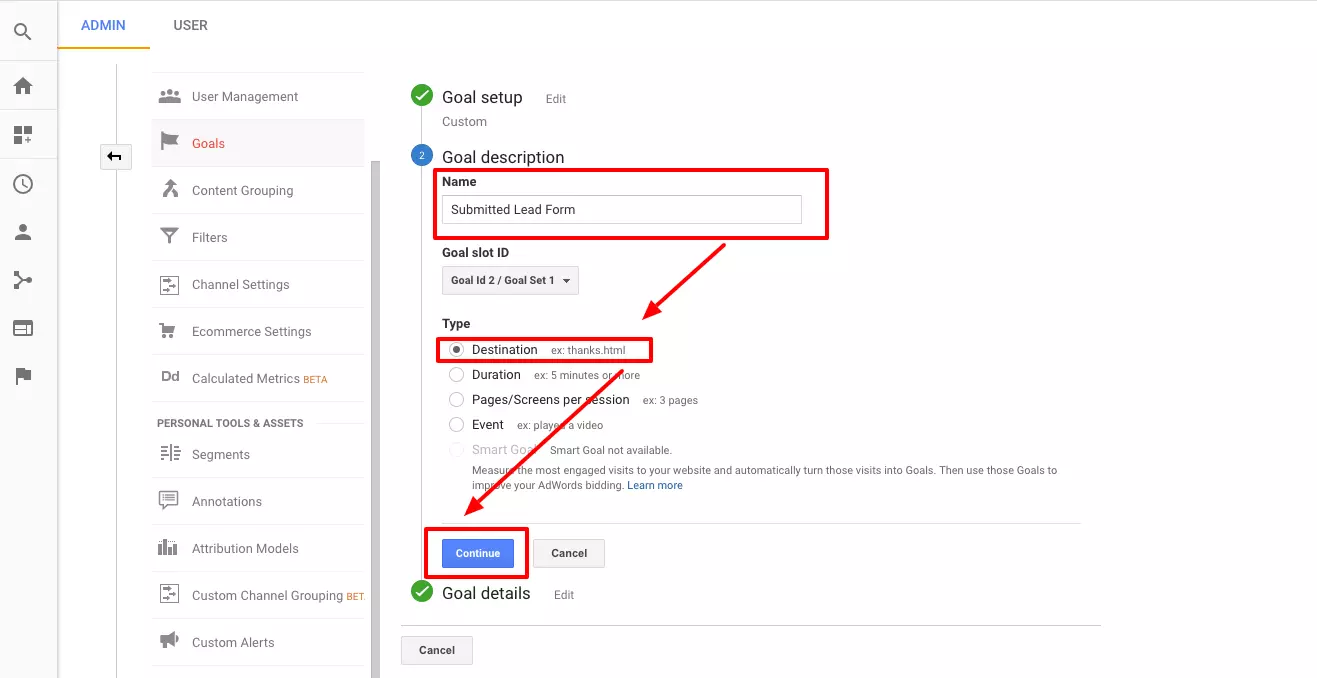
Goals allow you to track specific user interactions as conversions. Here’s how to create them:
-
Log in to Google Analytics → Select your Universal Analytics property.
-
Navigate to Admin (gear icon) → Under the View column, click Goals.
-
Click + New Goal and choose a template or select Custom.
-
Define the Goal details:
-
Goal Type: Select from options like Destination (e.g., thank-you page), Duration, Pages/Screens per Session, or Event.
-
Goal Details: For a Destination goal, enter the URL of the confirmation page (e.g.,
/thank-you).
-
-
Save the Goal.
Once active, Google Analytics will start recording conversions when users complete the defined action.
Step 2: Set Up Google Analytics Enhanced Ecommerce Tracking
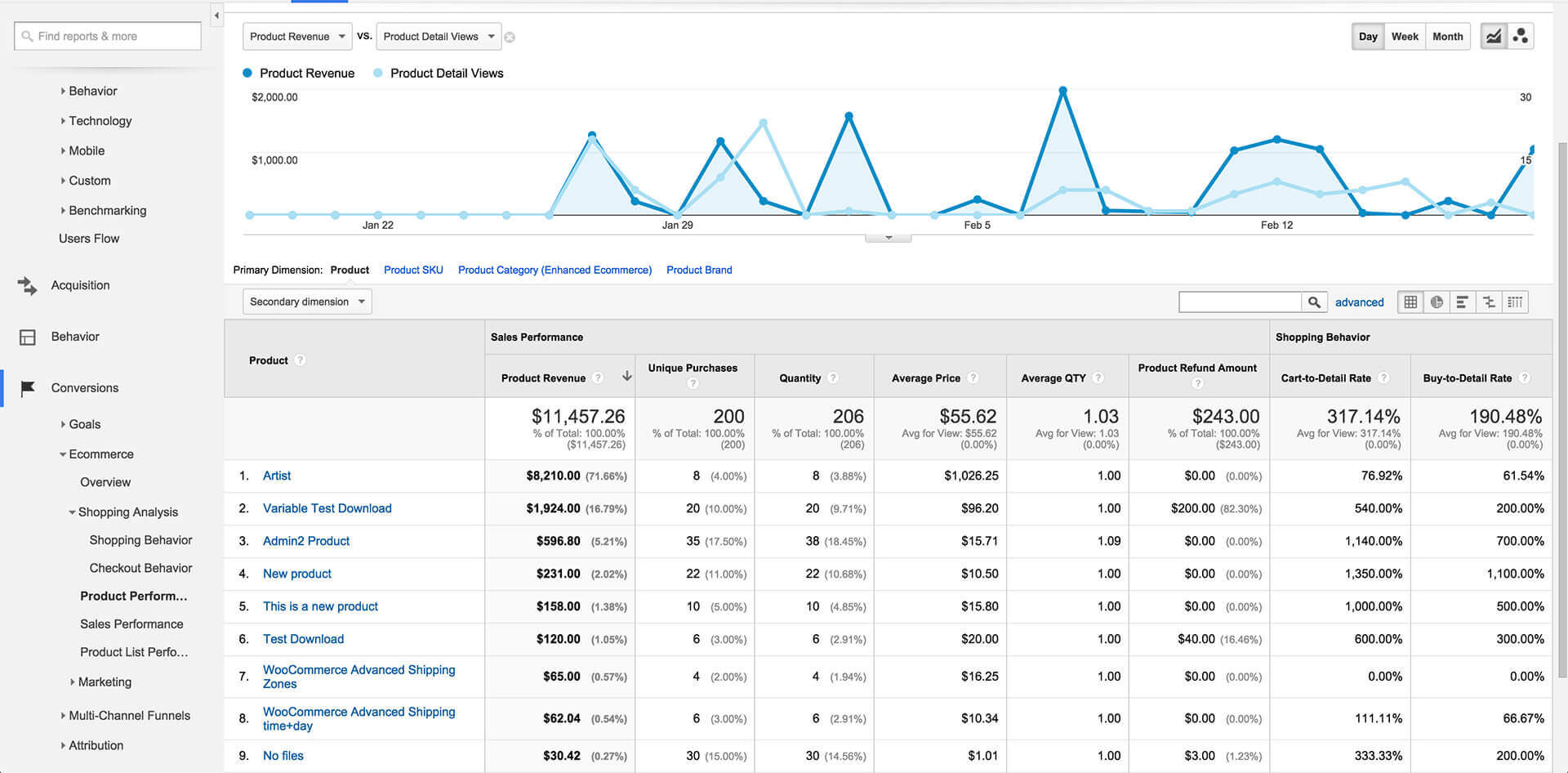
For online stores, Enhanced Ecommerce tracking provides deeper insights into shopping behavior. Follow these steps:
-
Enable Enhanced Ecommerce in Google Analytics:
-
Go to Admin → Ecommerce Settings under the View column.
-
Toggle Enable Ecommerce and Enable Enhanced Ecommerce Reporting.
-
-
Implement Tracking Code:
-
Work with a developer to add the Enhanced Ecommerce data layer to your website. This code sends purchase data (product details, revenue, etc.) to Google Analytics.
-
-
Verify the Setup:
-
Test a transaction and check the Ecommerce Reports under Conversions to confirm data is being recorded.
-
Enhanced Ecommerce helps track:
-
Product impressions
-
Add-to-cart actions
-
Checkout behavior
-
Purchase transactions
Step 3: Track Google Analytics Events as Conversions

Events are user interactions that don’t load a new page but are valuable to track, such as:
-
Video plays
-
Clicks on specific buttons
-
Scroll depth
-
Outbound link clicks
How to Set Up Event Tracking in Universal Analytics:
-
Add the Event Tracking Code
Modify your Google Analytics tracking code to include: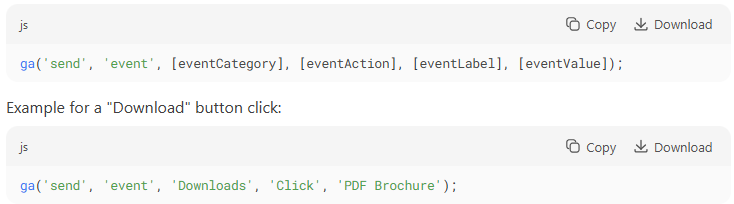
-
Create an Event-Based Goal
-
Go to Admin > Goals > + New Goal
-
Select Custom > Event
-
Enter the matching Event Category, Action, and Label
-
-
Verify with Real-Time Reports
Trigger the event and check Real-Time > Events to confirm tracking.
Step 4: Track Form Submissions as Conversions in Google Analytics
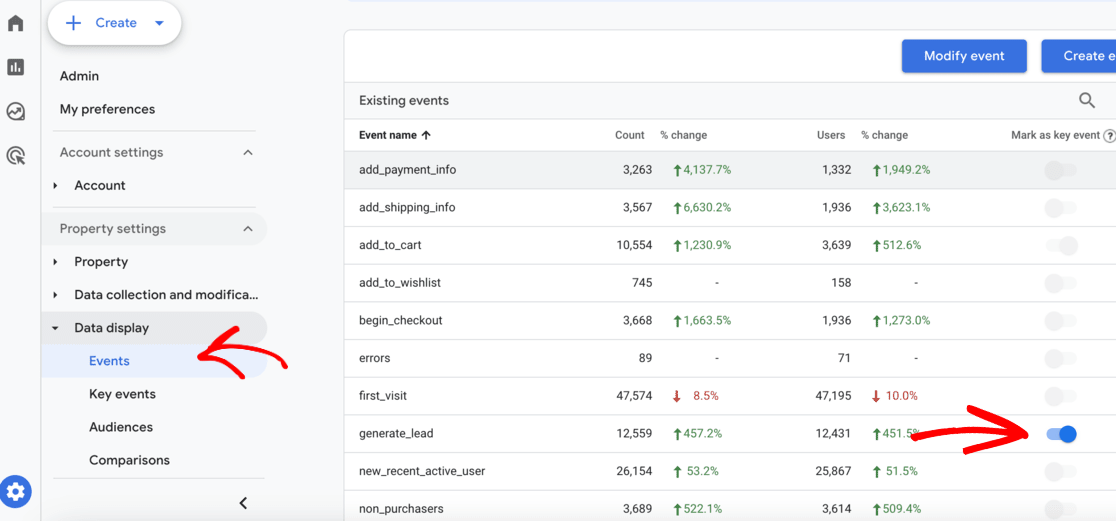
Method A: Thank-You Page as a Destination Goal
-
Set up a unique thank-you page URL (e.g.,
/thank-you) -
Create a Destination Goal pointing to that URL
Method B: Form Submit Event Tracking (Recommended for AJAX forms)
-
Add this JavaScript to your form code:

-
Create an Event Goal as shown in Step 3
Pro Tip: Use Google Tag Manager for easier implementation without code edits.
Step 5: Track Phone Calls as Conversions in Google Analytics
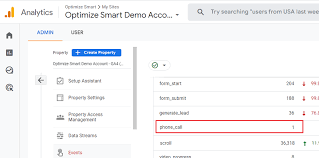
For Click-to-Call Links:
-
Add event tracking to phone links:

For Call Tracking Numbers (Advanced):
-
Use a call tracking service like CallRail
-
Integrate with Google Analytics via:
-
Events for call initiations
-
Goals for completed calls
-
Step 6: Track Downloads as Conversions in Google Analytics
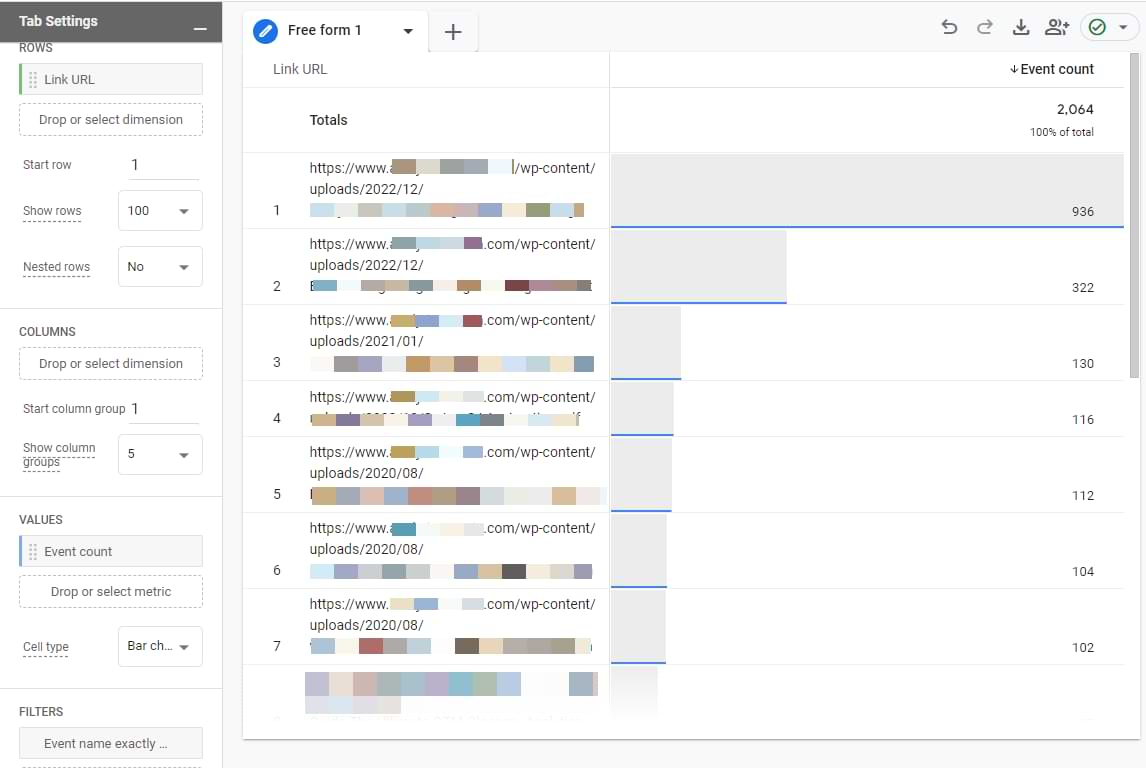
Tracking File Downloads (PDFs, ZIPs, etc.):
-
Add this JavaScript to track clicks on download links:
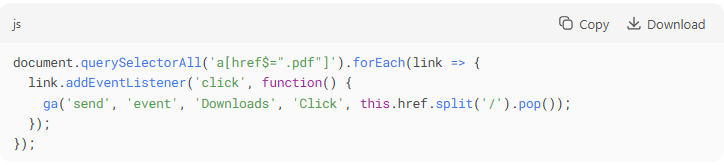
-
Create an Event Goal with:
-
Category:
Downloads -
Action:
Click
-
Alternative: Use Google Tag Manager’s built-in “File Download” trigger.
How to Track Conversions in Google Analytics 4 (GA4)
Google Analytics 4 (GA4) introduces a new approach to conversion tracking that differs significantly from Universal Analytics. Instead of using “Goals,” GA4 tracks conversions through events that you mark as conversions. Here’s how to set it up properly:
Step 1: Set Up a Conversion Event in GA4
-
Access Your GA4 Property
-
Log in to your Google Analytics account
-
Select your GA4 property (not the Universal Analytics property)
-
-
Navigate to Events
-
In the left menu, click on “Configure” (the wrench icon)
-
Select “Events” from the dropdown
-
-
Create a New Event (if needed)
-
Click “Create event”
-
Give your event a descriptive name (e.g., “form_submission”)
-
Define matching conditions:
-
For form submissions:
event_name equals form_submit -
For purchases:
event_name equals purchase -
For phone calls:
event_name equals phone_call
-
-
Click “Create”
-
-
Verify Event Tracking
-
Test the action on your website (submit a form, make a purchase, etc.)
-
Check “Realtime” reports to confirm the event is being recorded
-
Step 2: Mark the Event as a Conversion in GA4
-
Go to Conversions Settings
-
Still in the “Configure” section
-
Select “Conversions” from the dropdown
-
-
Mark an Event as Conversion
-
Click “New conversion event”
-
Enter the exact name of the event you want to track as a conversion
-
Click “Save”
-
-
Configure Conversion Parameters (Optional)
-
For ecommerce purchases, ensure you’re capturing:
-
value(revenue) -
currency -
transaction_id
-
-
For lead forms, consider tracking:
-
form_id -
form_name
-
-
-
Verify in Reports
-
Allow 24-48 hours for data to appear
-
Check the “Conversions” report under “Engagement”
-
Key Differences from Universal Analytics:
-
GA4 tracks all conversions at the event level
-
No more “Goal Values” – use event parameters instead
-
Conversion counting is now per session by default (changeable in settings)
-
Enhanced measurement can automatically track some conversions (scrolls, outbound clicks, etc.)
Pro Tip: For complex conversion tracking, consider using Google Tag Manager to send custom events to GA4 with all the necessary parameters. This gives you more flexibility and control over what gets tracked as a conversion.
How to View Conversion Data in Google Analytics
After setting up conversion tracking, you need to know where to find and analyze your conversion data. The location differs between Universal Analytics and GA4, and each provides unique reporting capabilities to measure your success metrics.
Where to Find Conversion Data in Universal Analytics
-
Conversions Reports Section
-
Navigate to: Conversions > Goals > Overview
-
View all goal completions and conversion rates
-
See goal value data if you’ve assigned monetary values
-
-
Goal Flow Report
-
Path: Conversions > Goals > Goal Flow
-
Visualizes the paths users take to complete conversions
-
Identifies where users drop off in your conversion funnel
-
-
Ecommerce Reports (if enabled)
-
Path: Conversions > Ecommerce
-
Contains detailed sales performance data
-
Includes product performance, transaction details, and time to purchase
-
-
Multi-Channel Funnels
-
Path: Conversions > Multi-Channel Funnels
-
Shows how marketing channels work together to create conversions
-
Provides assisted conversion data
-
-
Custom Reports & Dashboards
-
Create custom reports with Goal Completion as a metric
-
Build dashboards to monitor key conversions at a glance
-
Where to Find Conversion Data in Google Analytics 4 (GA4)
-
Reports Snapshot
-
First view when logging into GA4
-
Shows high-level conversion metrics
-
Quickly view total conversions and conversion rate
-
-
Acquisition Reports
-
Path: Reports > Acquisition
-
See which traffic sources drive conversions
-
Compare conversion performance by channel/campaign
-
-
Engagement > Conversions Report
-
Primary location for conversion analysis
-
View all marked conversion events
-
See trends over time and breakdowns by other dimensions
-
-
Exploration Reports
-
More advanced analysis capabilities
-
Create custom conversion funnel visualizations
-
Analyze paths to conversion with path exploration
-
-
Advertising Section
-
Path: Advertising > Conversions
-
Specifically shows conversion data tied to ad campaigns
-
Useful for Google Ads integration analysis
-
Key Differences to Note:
-
GA4 combines all conversion events in one view
-
No separate “Goals” section like Universal Analytics
-
More flexible analysis through Exploration reports
-
Real-time conversion tracking is more prominent in GA4
Pro Tip: In GA4, use the comparison feature in reports to analyze conversion performance between different user segments, such as new vs. returning visitors or traffic sources.
Google Analytics Conversion Tracking FAQs
How Do I Track Conversions in Google Analytics?
In Universal Analytics:
-
Set up Goals in Admin > View > Goals
-
Choose from Destination, Duration, Pages/Screens, or Event goals
-
For ecommerce, enable Enhanced Ecommerce tracking
In GA4:
-
First ensure your desired events are being collected
-
Mark relevant events as conversions in Configure > Conversions
-
For ecommerce, implement the recommended purchase events
Both versions allow conversion tracking through Google Tag Manager for more advanced implementations.
What Counts as a Conversion in Google Analytics?
A conversion is any user action you define as valuable, including:
-
Micro-conversions (engagement actions):
-
Form submissions
-
Newsletter signups
-
Video views
-
File downloads
-
Time on site/page depth
-
-
Macro-conversions (business objectives):
-
Completed purchases
-
Lead generation submissions
-
Phone calls from website
-
Appointment bookings
-
Account registrations
-
What Is a Good Conversion Rate in Google Analytics?
Conversion rates vary significantly by:
-
Industry: Ecommerce (1-3%), B2B (2-5%), SaaS (3-7%)
-
Traffic source: Paid ads typically convert higher than organic
-
Device: Desktop often outperforms mobile
-
Offer type: High-value products convert lower than impulse buys
Benchmarks:
-
Average ecommerce: 1-3%
-
Lead generation: 3-5%
-
SaaS free trials: 5-7%
-
Content downloads: 5-10%
Focus more on improving your own baseline rather than industry averages.
Can You Track Conversions in the Free Version of Google Analytics?
Yes, both free versions offer robust conversion tracking:
-
Universal Analytics Free:
-
Up to 20 Goals per view
-
Basic ecommerce tracking
-
Limited data retention (26 months)
-
-
GA4 Free:
-
Unlimited conversion events
-
Enhanced measurement options
-
Longer data retention options
-
Paid versions (Analytics 360) offer higher limits and more advanced features but aren’t necessary for most conversion tracking needs.
Conclusion
Mastering conversion tracking in Google Analytics is fundamental for measuring and optimizing your digital performance. Whether you’re using Universal Analytics or GA4, properly configured conversion tracking enables you to:
-
Measure what matters – Focus on actions that drive business value
-
Optimize performance – Identify and improve underperforming areas
-
Allocate resources wisely – Invest in what actually converts
-
Prove ROI – Demonstrate the impact of your marketing efforts
Remember that conversion tracking requires:
-
Proper initial setup
-
Regular verification
-
Ongoing optimization
-
Alignment with business objectives
By implementing the techniques covered in this guide, you’ll transform Google Analytics from a simple traffic counter to a powerful optimization engine that drives real business growth. Start with your most critical conversions today, and progressively refine your tracking as your analytics maturity grows.
Read More: How Schema Markup Can Boost Your Local SEO and Help You Stand Out


