

You open PageSpeed Insights, paste in your URL, and watch the circle turn red. Maybe your mobile score is 38, or Core Web Vitals says “Failed.” Finding the best WordPress speed optimization tools is the quickest way to turn that around, but with dozens of plugins, platforms and services all making the same promises, it’s hard to know where to start.
The good news is that speed is one of the most fixable problems in WordPress. Free tools often require a bit of tuning, while premium solutions handle much of the work for you. Other options focus on specific tasks, such as image optimization, rather than improving overall performance. You’ll also find testing tools that help you measure results and track your progress.
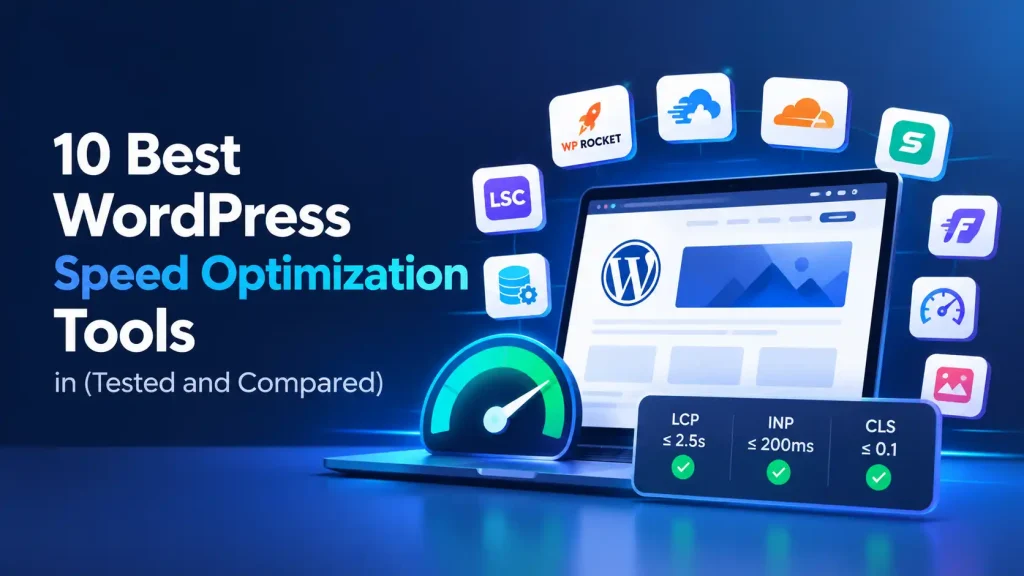
Speed matters for a simple reason: people don’t wait. A slow page loses visitors before they have read a word, which means fewer sales, fewer sign-ups and fewer enquiries. Google also measures real-world experience through Core Web Vitals, which are part of its page experience signals. The three to know are Largest Contentful Paint (LCP, good is 2.5 seconds or less), Interaction to Next Paint (INP, good is 200 milliseconds or less) and Cumulative Layout Shift (CLS, good is 0.1 or less).
This guide compares ten tools across ease of use, impact on Core Web Vitals, WooCommerce compatibility and value for money. Each one comes with a clear verdict, who it suits best, and honest pros and cons, so you can pick the right one without testing them all yourself.
Quick answer
For most people who want a faster site without touching code, Nimbica is the top pick, because it turns your WordPress site into static pages served from a global edge network. WP Rocket is the best traditional all-in-one plugin, LiteSpeed Cache is the best free option on LiteSpeed hosting, and Cloudflare is the best add-on for global delivery. No single tool suits every site, so use the comparison table below to match one to your situation.
Table of Contents
- Best WordPress Speed Optimization Tools at a Glance
- What Are WordPress Speed Optimization Tools?
- Why Do WordPress Sites Get Slow?
- How These Tools Were Evaluated
- 1. Nimbica
- 2. WP Rocket
- 3. NitroPack
- 4. FlyingPress
- 5. LiteSpeed Cache
- 6. Perfmatters
- 7. WP-Optimize
- 8. Cloudflare
- 9. ShortPixel
- 10. Google PageSpeed Insights and GTmetrix
- Which Tool Fixes Which Core Web Vitals Problem?
- Best Tools by Use Case
- How to Choose the Best WordPress Speed Optimization Tools for Your Site
- Common Speed Optimization Mistakes to Avoid
- Frequently Asked Questions
- Final Thoughts
Best WordPress Speed Optimization Tools at a Glance
| Tool | Best for | Type | Free option | Pricing | Ease of use |
|---|---|---|---|---|---|
| Nimbica |
Best AI-Powered Pick |
Static edge platform | 14-day free trial | From $10.99/mo (billed annually) | Easy |
| WP Rocket | Best all-in-one plugin | Caching and optimization plugin | No | Paid annual license | Easy |
| NitroPack | Hands-off cloud optimization | Cloud optimization service | Check official site | Paid, usage-based tiers | Easy to moderate |
| FlyingPress | Modern, fast caching | Caching plugin | No | Paid annual license | Moderate |
| LiteSpeed Cache | Best free option | Server-level caching plugin | Yes | Free | Moderate to advanced |
| Perfmatters | Script and asset control | Optimization plugin | No | Paid annual license | Advanced |
| WP-Optimize | Free database and cache cleanup | Cleanup and caching plugin | Yes | Free, with premium upgrade | Easy |
| Cloudflare | Global CDN and edge caching | CDN and security | Yes | Free plan, paid upgrades | Moderate |
| ShortPixel | Image compression | Image optimization plugin | Yes (monthly credits) | Paid credits and plans | Easy |
| PageSpeed Insights / GTmetrix | Measuring and monitoring | Testing tools | Yes | Free (GTmetrix has paid extras) | Easy |
What Are WordPress Speed Optimization Tools?
WordPress speed optimization tools are plugins, platforms and services that make your website load faster by reducing server work, shrinking files, delivering content from closer to your visitors, or showing you where the delays are.
They fall into four main types, and understanding the difference will stop you from buying two tools that do the same job:
- Caching and optimization plugins store ready-made copies of your pages and clean up your code. WP Rocket, FlyingPress and LiteSpeed Cache are examples.
- Image optimizers compress images and convert them to modern formats like WebP and AVIF. ShortPixel is a good example.
- CDN and edge delivery tools serve your site from servers around the world, so visitors load it from a location near them. Cloudflare and Nimbica work this way.
- Testing tools measure your speed and point to what is slowing you down. Google PageSpeed Insights and GTmetrix are the usual choices.
Most sites end up with a small combination, such as one caching approach, one image tool and one testing tool. Later in this guide we show which combinations work well together and which ones clash.
Why Do WordPress Sites Get Slow?
Before choosing a tool, it helps to understand what you are fixing. WordPress is flexible, but it is a dynamic system. Every time someone visits a page, the server usually runs PHP code, asks the database for content and assembles the page before sending it back. Even on a good day, that takes time.
Then real life piles on:
- A feature-rich theme or page builder that loads scripts and styles you never use
- Large, uncompressed images straight from a phone or camera
- Plugins that each add their own CSS and JavaScript
- Budget shared hosting with limited resources
- Third-party scripts such as ads, chat widgets and tracking tags
Any one of these is manageable. Together, they explain how a simple five-page site can end up with a mobile score in the 40s. The tools below tackle different parts of that list, which is why matching the tool to the problem matters more than chasing the most popular name.
How These Tools Were Evaluated
A list of tools is only useful if you know how they were judged. Every tool here was assessed against the same five criteria:
- Impact on Core Web Vitals: how much it can improve LCP, INP and CLS, plus Time to First Byte (TTFB).
- Ease of setup: whether a non-developer can get good results in under an hour.
- Compatibility: how well it works with WooCommerce, popular page builders and common hosts.
- Value for money: what you get for the price, and whether a free option exists.
- Support and reliability: whether it is actively maintained and how easy it is to get help.
The testing process: each tool is installed on the same WordPress test site, measured with Google PageSpeed Insights on mobile before and after setup, and tested several times so that random variation does not skew the result.
One caution applies to every speed test, including ours: results change with your hosting, theme, plugins, images and third-party scripts. A tool that transforms one site may barely move another. Treat any score as a guide, not a guarantee, and always run your own before-and-after test.
1. Nimbica: Best AI-Powered WordPress Speed Platform
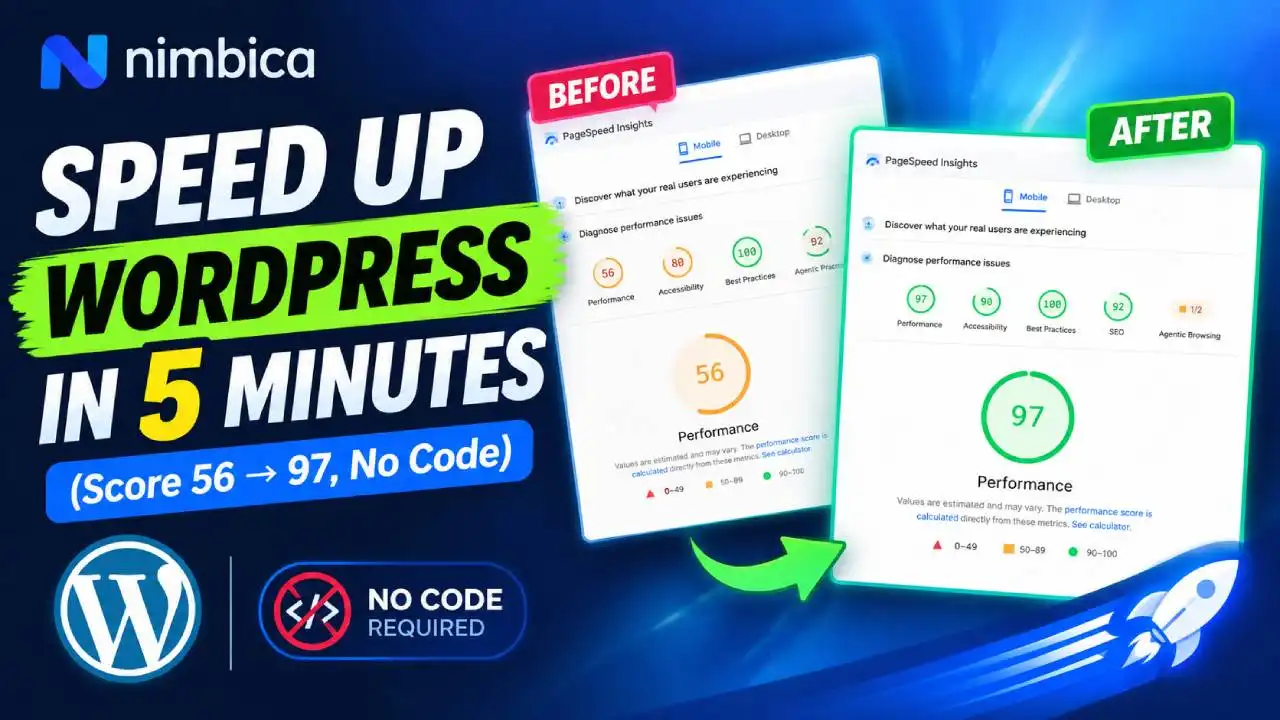
Most tools on this list try to help WordPress build pages faster. Nimbica takes a different route. It is an AI-powered platform that does the optimization work for you, then serves your site as pre-built static pages from a global edge network (the company says 300+ locations). There are no settings to tune, no code to touch and no developer to hire.
Here is how the AI side works. On every build, Nimbica’s engine analyzes your pages, images, CSS and JavaScript and applies what the company describes as 47 automatic micro-optimizations: converting images to AVIF and WebP, extracting critical CSS, stripping unused styles, deferring non-essential scripts, checking heading structure and validating schema. Setup stays simple. You install the plugin, connect your site, and the AI handles the rest.
The result is a site that feels instant. Because visitors get a ready-made page from a server near them, the company reports a Time to First Byte of around 38 ms, and predictive prefetching loads likely next pages in the background. Clicking from page to page feels closer to the smooth, instant navigation of a modern React-style app than a traditional WordPress site.
It also gives WordPress a headless-style, static front end without the usual work. A true headless setup typically means rebuilding your front end in something like Node.js and reworking your themes and plugins. With Nimbica, you keep your existing WordPress site, theme, page builder and host, and keep editing in the normal dashboard. An incremental build system rebuilds only the pages you change, and the company says updates go live in under 30 seconds. If you ever cancel, the site falls back to your original WordPress setup.
One more feature stands out: offline support. According to Nimbica’s pricing page, its E-commerce plan includes offline browsing and offline order processing, with no app install needed for customers, so a store can keep working when a shopper’s connection drops.
Verdict
The most hands-off option here: AI optimizes your site, static edge delivery makes it load near-instantly, and you never rebuild or migrate anything.
Best for
Business owners, bloggers, WooCommerce stores and agencies who want app-like speed without a developer or a headless rebuild.
Pricing
From $10.99/month billed annually, with a 14-day free trial. The E-commerce plan with offline features starts at $25.83/month billed annually (per the company).
✔ Pros
- AI handles optimization, with no manual tuning or coding
- Static edge delivery for near-instant page loads
- Instant-feeling navigation through predictive prefetching
- Headless-style speed with no Node.js rebuild or migration
- Offline browsing and ordering on the E-commerce plan
- Agency plan with white-label dashboard
✖ Cons
- Paid subscription, with no permanent free plan
- Offline features are tied to the E-commerce plan
- Dynamic features still need testing after setup
- Newer than established plugins, so less independent review history
Key features:
- AI-powered optimization engine that runs automatically on every build
- Static edge delivery from 300+ global locations, so pages do not wait on PHP and database queries
- Smart AVIF and WebP image pipeline with responsive sizes and lazy loading
- Critical CSS extraction, unused CSS removal and deferred JavaScript
- Automated SEO checks: heading structure, missing alt text and schema validation
- Predictive link prefetching for instant-feeling page transitions
- Incremental builds that rebuild only changed pages, typically in under 30 seconds
- Contact forms handled through edge proxies, and WooCommerce carts and checkout handled dynamically while product pages stay static, according to the company
- Preservation of SEO metadata from Yoast, Rank Math and SEOPress, according to the company
Bottom line: if you want the speed of a modern, app-like site without rebuilding anything, this is the most hands-off option on the list. It is not the best fit for sites that depend heavily on real-time dynamic content, third-party ad and chat scripts can still slow a page down, and you should always test your forms and checkout after setup.
2. WP Rocket: Best All-in-One Caching Plugin
WP Rocket has been a go-to recommendation for years, and the reason is simplicity. The moment you activate it, it applies sensible defaults like page caching and browser caching, then lets you switch on the more advanced features when you are ready. For anyone intimidated by long settings screens, that matters.
It is a premium-only plugin, and it works on your own server, which means it improves how efficiently WordPress delivers pages but does not move them closer to your visitors. Pair it with a CDN and an image optimizer and it becomes a very complete setup.
Verdict
The easiest premium plugin for solid speed gains without digging through settings.
Best for
Site owners who want a dependable, beginner-friendly plugin and are happy to pay for it.
Pricing
Paid annual licenses based on the number of sites. Check the official site for current prices.
✔ Pros
- Simple interface that does not overwhelm beginners
- Strong results from default settings on many sites
- Works with most themes, page builders and hosts
- Regular updates and responsive support
✖ Cons
- No free version
- Runs on your origin server, so it cannot match edge delivery on TTFB
- Advanced image optimization needs a separate tool
Key features:
- Page caching and cache preloading
- Delay JavaScript execution and remove unused CSS
- Lazy loading for images and iframes
- File minification and combination
- Database cleanup tools and CDN integration
Bottom line: if you want one plugin that simply works and you do not mind paying, WP Rocket is hard to beat for ease of use.
3. NitroPack: Best Cloud-Based All-in-One Optimizer
NitroPack processes your pages on its own servers instead of yours. It applies optimizations such as code minification, image conversion, lazy loading and critical CSS, then delivers the result through a built-in CDN. Because the heavy lifting happens in the cloud, it puts very little extra load on your hosting.
It also offers different optimization modes, from conservative to aggressive, so you can choose how far to push it. The stronger the mode, the bigger the potential gains and the higher the chance of a script or layout misbehaving, so test your pages after switching modes.
Verdict
A hands-off, cloud-powered optimizer that takes an aggressive approach to speed.
Best for
Owners who want maximum automation and are comfortable with an external service handling delivery.
Pricing
Paid, with tiers based on usage. Check the official site for current plans.
✔ Pros
- Minimal configuration for strong results
- Works across most hosts and page builders
- Built-in CDN and critical CSS
- Big potential gains on heavy sites
✖ Cons
- Aggressive modes can occasionally break layouts or scripts
- Usage-based pricing can climb as traffic grows
- You rely on a third-party service for delivery
Key features:
- Automated caching, image optimization and code optimization
- Built-in global CDN
- Critical CSS generation
- Adjustable optimization modes
Bottom line: a strong choice if you want automation and do not want to configure things by hand, as long as you check your site carefully after enabling the stronger modes.
4. FlyingPress: Best for Modern, Performance-Focused Caching

FlyingPress takes a streamlined approach. It bundles the optimizations most sites need, including caching, unused CSS removal, delayed JavaScript, lazy loading and font handling, into a clean interface that does not bury you in options. It is built with modern performance metrics in mind, which is why it is often mentioned in discussions about LCP and INP.
Like other plugins, it works on your origin server, so it pairs well with a CDN. If you find the big names too cluttered, or you simply want something lean that focuses on what matters for Core Web Vitals, it is worth a look.
Verdict
A fast, focused premium plugin built around modern Core Web Vitals.
Best for
Site owners who like a clean setup and want performance tuned for LCP and INP.
Pricing
Paid annual licenses. Check the official site for current prices.
✔ Pros
- Clean, simple dashboard
- Targets LCP and INP issues directly
- Works well alongside other performance tools
- Useful font and iframe handling
✖ Cons
- No free version
- Smaller community and fewer tutorials than WP Rocket
- Works on your origin server only
Key features:
- Page caching and preloading
- Unused CSS removal and JavaScript delay
- Lazy loading, including iframes and videos
- Font optimization and self-hosting options
- CDN integration
Bottom line: a good alternative to WP Rocket, especially if you value a minimalist interface and a performance-first approach.
5. LiteSpeed Cache: Best Free Speed Plugin
LiteSpeed Cache works at the server level, which is why it can be so effective when paired with a LiteSpeed web server. The free plugin includes an unusually deep feature set: object caching, image optimization, critical CSS and CDN integration through QUIC.cloud. If your host uses LiteSpeed, you may not need to pay for anything else.
The catch is that many of its best features depend on that server. On a host that does not run LiteSpeed, you lose much of the advantage, and the long settings screen can feel overwhelming to beginners. A wrong setting can also cause layout or script problems, so change one thing at a time.
Verdict
The most powerful free speed plugin, as long as your host runs LiteSpeed.
Best for
Budget-conscious sites on LiteSpeed or OpenLiteSpeed hosting.
Pricing
The plugin is free. Some QUIC.cloud services are paid beyond free usage.
✔ Pros
- Free, with a very deep feature set
- Excellent performance on supported servers
- Includes image optimization and CDN options
- Actively developed
✖ Cons
- Best features need a LiteSpeed server
- Large settings panel can overwhelm beginners
- Misconfiguration can break layouts or scripts
Key features:
- Server-level page caching
- Image optimization and WebP conversion
- CSS and JavaScript minification and combination
- Database cleanup and object caching
- QUIC.cloud CDN integration
Bottom line: if your host runs LiteSpeed, start here before paying for anything. If it does not, look at the other options on this list first.
6. Perfmatters: Best for Script and Asset Control

Perfmatters is not a caching plugin, and that is the point. Its job is to stop unnecessary scripts and styles from loading in the first place. For example, you can stop a contact form plugin’s files from loading on every page except the contact page, which cuts the amount of code the browser has to process.
That kind of control can improve INP and reduce render-blocking resources, but it also means you can break things if you disable the wrong file. It works best as a second tool alongside a caching plugin, used by someone who is comfortable testing carefully.
Verdict
A lightweight plugin for removing the code your pages do not need.
Best for
Users who want precise control and already have caching sorted.
Pricing
Paid annual licenses. Check the official site for current prices.
✔ Pros
- Lightweight and efficient
- Reduces unused code and render-blocking resources
- Pairs well with a caching plugin
- Precise per-page control
✖ Cons
- Needs some technical comfort
- Does not replace caching
- No free version
Key features:
- Script manager to disable plugin assets per page or post type
- Options to disable emojis, embeds and the Heartbeat API
- Local hosting of Google Analytics and fonts
- Lazy loading and preconnect options
Bottom line: excellent as a second tool for people who like fine-tuning, and not the best first pick for complete beginners.
7. WP-Optimize: Best Free Database and Cache Cleanup
WordPress databases collect clutter over time: post revisions, spam comments, expired transients and orphaned data. WP-Optimize cleans this up with a few clicks, and it also adds page caching, image compression and file minification. That makes it a friendly, all-in-one starting point for people who do not want to learn ten different plugins.
Its caching and code optimization are less advanced than the premium tools, and the gains depend on how bloated your database is. An older site with years of revisions may see a clear improvement, while a brand-new site may notice very little.
Verdict
A friendly free plugin that tidies your database and adds basic caching and compression.
Best for
Beginners, small blogs and older sites with a cluttered database.
Pricing
Free version available, with a premium upgrade for extra features.
✔ Pros
- Free version covers the basics
- Beginner-friendly
- Handles several jobs in one plugin
- Scheduled clean-ups save time
✖ Cons
- Caching is less advanced than premium tools
- Gains depend on how bloated your database is
- Some features sit behind the premium version
Key features:
- One-click and scheduled database cleanup
- Page caching
- Image compression
- File minification
Bottom line: a sensible free starting point, especially for older sites. Many people will eventually outgrow it and move to a more advanced option.
8. Cloudflare: Best for Global Delivery and Edge Caching

Cloudflare sits between your visitors and your server. It caches static files like images, CSS and JavaScript at data centers around the world, and adds security protections such as DDoS defense and a web application firewall. For WordPress, its Automatic Platform Optimization (APO) can also cache full HTML pages at the edge, which directly reduces Time to First Byte for visitors far from your server.
The free plan is generous, but setup involves changing DNS settings, which can feel technical the first time. Cloudflare also will not fix heavy images, bloated themes or render-blocking code on its own, so treat it as a companion to an optimization plugin, not a replacement.
Verdict
A CDN that improves delivery worldwide, with a very capable free tier.
Best for
Sites with visitors in many regions, and anyone who wants security included with speed.
Pricing
Free plan available. Paid plans and APO are extra. Check the official site for current prices.
✔ Pros
- Generous free plan
- Security benefits alongside speed
- Helps visitors far from your server
- Works with almost any WordPress setup
✖ Cons
- Setup involves DNS changes
- APO is a paid feature on some plans
- Does not fix heavy images or bloated code
Key features:
- Global CDN
- DDoS protection and web application firewall
- APO for WordPress edge caching of HTML
- Brotli compression and basic performance settings
Bottom line: an excellent companion to a caching or optimization plugin, and rarely enough by itself.
9. ShortPixel: Best for Image Optimization

Large images are one of the most common reasons for a slow Largest Contentful Paint, and they are also one of the easiest problems to fix. ShortPixel compresses your images, converts them to modern formats like WebP and AVIF, and can process your whole media library in bulk, so old uploads get fixed too.
It offers lossless, glossy and lossy compression modes, so you can balance file size against visual quality. Aggressive compression can soften images, so spot-check your most important photos after a bulk run.
Verdict
A reliable, easy way to shrink images without a noticeable loss in quality.
Best for
Image-heavy sites such as portfolios, blogs, stores and travel sites.
Pricing
Free monthly credits, with paid credit packs and plans for more.
✔ Pros
- Very simple to use
- Often gives a noticeable LCP improvement on image-heavy pages
- Works alongside any caching plugin
- Bulk optimization for existing images
✖ Cons
- Credit-based pricing adds up for heavy users
- Handles images only
- Aggressive compression can reduce quality
Key features:
- Lossless, glossy and lossy compression modes
- WebP and AVIF conversion
- Bulk optimization for your existing media library
- Automatic optimization on upload
Bottom line: if your PageSpeed report keeps flagging images, this is an easy fix and a natural companion to any other tool in this guide.
10. Google PageSpeed Insights and GTmetrix: Best for Testing and Monitoring

These two are not optimization tools themselves, but you cannot improve what you cannot measure. They tell you what is wrong and, just as importantly, whether your fixes worked.
Google PageSpeed Insights shows both lab data (a simulated test) and, where available, field data from real Chrome users. That field data is what Google’s Core Web Vitals assessment is based on, so it is the one to watch. GTmetrix adds detailed waterfall charts that show exactly which files load and when, plus the option to test from different locations. That is useful for finding the one script or image that is holding everything up.
Verdict
Not fixes, but the essential tools for diagnosing problems and proving that changes helped.
Best for
Everyone, before and after any change.
Pricing
PageSpeed Insights is free. GTmetrix is free to start, with paid plans for extra features.
✔ Pros
- Free to start
- Clear, prioritized recommendations
- Real-user field data in PageSpeed Insights
- Detailed waterfall charts in GTmetrix
✖ Cons
- Scores fluctuate between runs
- Lab scores do not always match real-user experience
- They diagnose problems but do not fix them
How to use them together: run PageSpeed Insights for the official Core Web Vitals picture, then use GTmetrix when you need to dig into the details. Test several times and average the results, because a single run can be misleading.
Which Tool Fixes Which Core Web Vitals Problem?
Different tools solve different problems, so the right choice depends on what your report is actually flagging. Use this table to match the symptom to the likely fix.
| Problem | What it means | Tools that help most |
|---|---|---|
| Slow LCP (over 2.5 seconds) | The main content takes too long to appear | Nimbica, WP Rocket, ShortPixel, Cloudflare |
| Poor INP (over 200 ms) | The page is slow to respond to taps and clicks | Perfmatters, WP Rocket, FlyingPress, Nimbica |
| High CLS (over 0.1) | The layout jumps around while loading | WP Rocket, FlyingPress, Nimbica |
| High TTFB | The server is slow to start responding | Nimbica, Cloudflare APO, LiteSpeed Cache |
| Heavy images | Large files slow the first view of the page | ShortPixel, Nimbica, LiteSpeed Cache |
| Bloated database | Old data slows queries and admin screens | WP-Optimize |
Best Tools by Use Case
If you would rather start from your situation than from the tool, this table gives a quick recommendation for each common scenario.
| If you are… | Top pick | Why |
|---|---|---|
| A beginner with no coding skills | Nimbica or WP Rocket | Minimal setup and strong defaults |
| Running a WooCommerce store | Nimbica or WP Rocket | Built to handle dynamic pages, with testing |
| On a tight budget | LiteSpeed Cache or WP-Optimize | Free and capable |
| An agency with many sites | Nimbica (Agency plan) | Multi-site management with a white-label dashboard |
| An advanced user who wants control | Perfmatters plus WP Rocket | Fine-tuned script control plus caching |
| Running an image-heavy site | ShortPixel plus a caching tool | Image weight is often the biggest LCP culprit |
| Serving a global audience | Cloudflare or Nimbica | Edge delivery close to visitors |
How to Choose the Best WordPress Speed Optimization Tools for Your Site
With ten options on the table, the temptation is to install several and hope. A better approach is to answer three questions first.
1. What is your real bottleneck? Start by running PageSpeed Insights and reviewing its diagnostics. When images are slowing things down, prioritize image optimization. If server response times are high, focus on caching and edge delivery. For JavaScript-related delays, look for tools that help control script loading and execution.
2. How technical are you? If you would rather not touch settings, choose an automated tool. If you enjoy tuning, a combination of plugins gives you more control, as long as you test carefully after each change.
3. What is your budget? Free tools can take you far, but your time has a cost too. A paid tool that works in minutes may be cheaper than a free one that takes a weekend to configure.
Once you have answers, three combinations tend to work well:
- The no-fuss setup: Nimbica on its own, then test your forms and checkout.
- The classic premium setup: WP Rocket, plus ShortPixel for images and Cloudflare for delivery.
- The budget setup: LiteSpeed Cache on a LiteSpeed host (or WP-Optimize elsewhere), plus Cloudflare’s free plan.
One rule matters above all: never run two caching plugins at the same time. They conflict, and the result is often a slower or broken site. Choose one caching approach, then add specialized tools around it for images, CDN and script control.
Common Speed Optimization Mistakes to Avoid
Even good tools give poor results when they are used badly. These are the mistakes that come up most often:
- Stacking multiple caching plugins. They fight each other. Use only one.
- Turning on every setting at once. Change one thing, test, then move on. That way you know exactly what caused a problem.
- Chasing a perfect 100. Real-user data and passing Core Web Vitals matter more than a perfect lab score.
- Ignoring images. One oversized hero image can undo a lot of careful work.
- Forgetting third-party scripts. Ads, chat widgets and tracking tags are often the slowest things on a page.
- Skipping tests after changes. Check your forms, checkout, menus and mobile layout every time.
- Testing only once. Scores vary between runs, so test several times and compare averages.
Frequently Asked Questions
What is the best WordPress speed optimization tool?
The best choice depends on your needs. Nimbica is our top pick for no-code, hands-off optimization, while WP Rocket is a popular premium plugin. If you prefer a free solution, LiteSpeed Cache is an excellent option for sites hosted on LiteSpeed servers.
What is the best free WordPress speed optimization tool?
LiteSpeed Cache is the most powerful free option if your host uses a LiteSpeed server. WP-Optimize is a friendlier free choice for database cleanup and basic caching, and Cloudflare’s free plan adds a CDN.
Do I need more than one speed plugin?
Often yes, but only one of each type. A typical setup is one caching approach, one image optimizer and a CDN. Avoid running more than one caching plugin at the same time.
How do I test my WordPress site speed?
Use Google PageSpeed Insights for your Core Web Vitals and GTmetrix for detailed waterfall reports. Run each test several times, compare averages, and always test before and after you make changes.
Does site speed affect SEO?
Yes. Core Web Vitals are part of Google’s page experience signals, and slow pages tend to lose visitors, which hurts engagement and conversions. Speed alone will not make thin content rank, but a slow site makes ranking harder.
What is the difference between a caching plugin and a static edge platform?
A caching plugin stores copies of your pages on your own server, so your hosting still does the work. A static edge platform like Nimbica builds static versions of your pages and serves them from servers around the world, which reduces the load on your origin server and can improve Time to First Byte.
How long does it take to see results?
Lab tests like PageSpeed Insights update immediately after a change. Core Web Vitals field data in Google Search Console is based on real-user data collected over time, so allow several weeks for it to reflect your improvements.
Final Thoughts
There’s no single winner for every website, but the right choice depends on your priorities. For effortless optimization and saving time, Nimbica is a strong choice. Those who prefer hands-on control can opt for WP Rocket or FlyingPress. Meanwhile, budget-conscious site owners can get excellent results with free options like LiteSpeed Cache, WP-Optimize, and Cloudflare’s free plan.
Whatever you choose, follow the same routine: measure your baseline, change one thing at a time, test again, and check your forms, checkout and mobile layout. Picking from the best WordPress speed optimization tools is only half the job. A faster site does not just score better, it keeps visitors on the page, and that is what actually grows your business.


