


Managing a Google Business Profile can be crucial for maintaining your business’s online presence. However, there are instances when you might need to remove a Google Business Profile from Maps and Search—perhaps if your company has permanently closed or if the profile was created by mistake. Removing a business profile ensures that outdated or inaccurate information doesn’t mislead potential customers and helps maintain the integrity of your online presence.
In this guide, we’ll walk you through the steps to effectively remove a Google Business Profile from both Google Maps and Search. Following these steps ensures that your business information is up-to-date and accurately reflects your current status.
Step 1: Mark Your Business as Permanently Closed
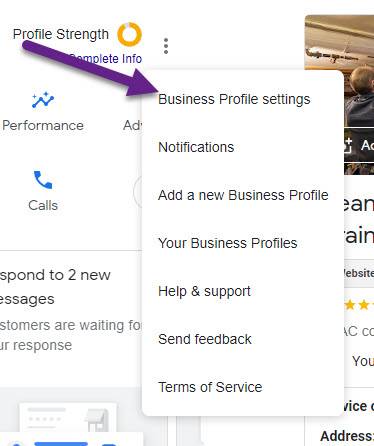
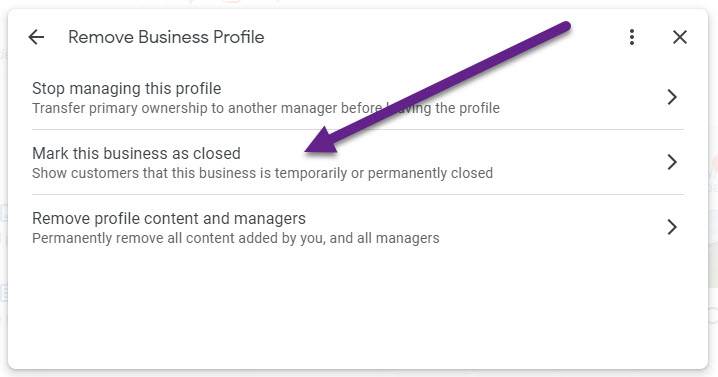
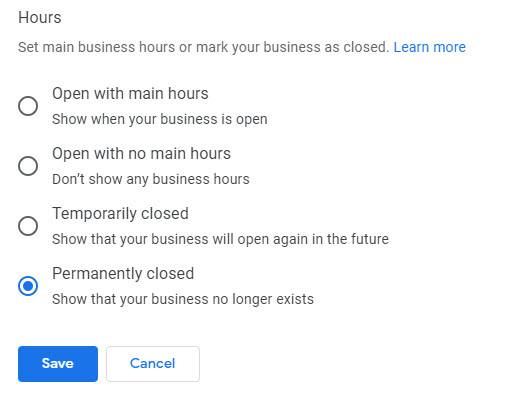
The first step to remove a Google Business Profile from Maps and Search is to mark your business permanently closed. This action informs Google and potential customers that your business is no longer operating, which helps prevent any confusion. Start by signing in to Google My Business with the account that manages the business profile. Once signed in, select the business location you wish to update. Navigate to the “Info” tab on the left-hand side of the dashboard, where you will find various options for updating your business details. Look for the option to mark the business as “Permanently closed.”
Select this option from the drop-down menu and confirm your choice. Be sure to save the changes to ensure that the update is applied. It may take a short time for the change to appear on Google Maps and Search, but this step is crucial for signaling to both customers and Google that the business is no longer operational.
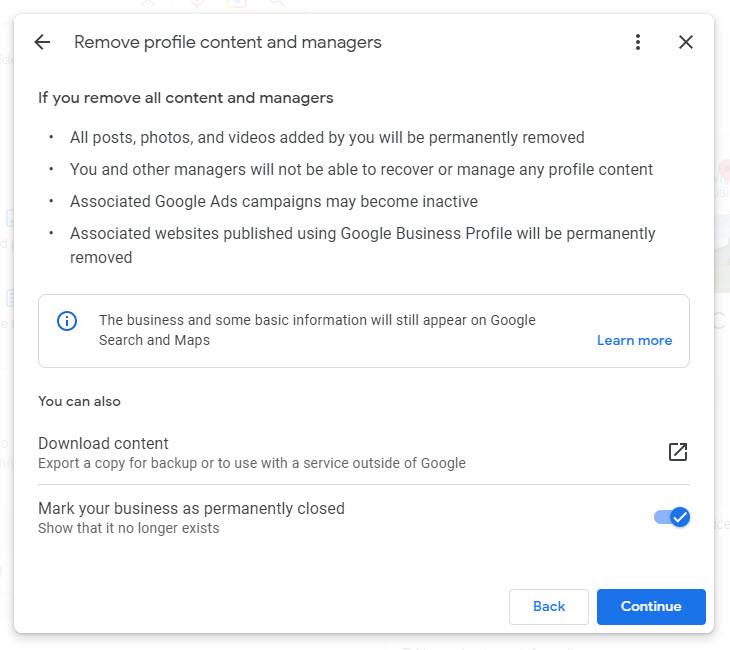
Step 2: Remove Profile Content and Managers
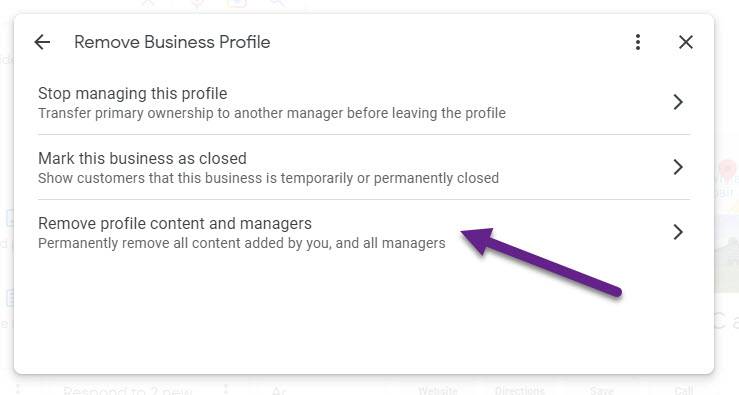
Once you’ve marked your business as permanently closed, the next step in removing a Google Business Profile from Maps and Search is to remove all profile content and managers. This ensures that no outdated or irrelevant information remains associated with your business and prevents other users’ further updates or access.
Begin by signing in to your Google My Business account. Select the business location that you are in the process of removing. In the dashboard, navigate to the “Info” section to review and edit the business details. Remove content such as business hours, addresses, phone numbers, and website links. This helps clear out any residual information that might still be visible on Google Maps and Search.
Next, proceed to the “Users” tab on the left side of the dashboard. Here, you will find a list of individuals who have access to manage the business profile. To ensure that no one else can make changes or view the profile, remove all managers and users associated with the profile. Click on the user’s name and select the option to remove or revoke access.
Step 3: Report Business Profile/Suggest Edit That It Doesn’t Exist
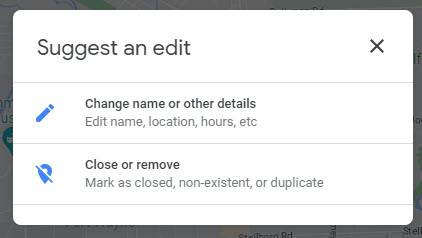
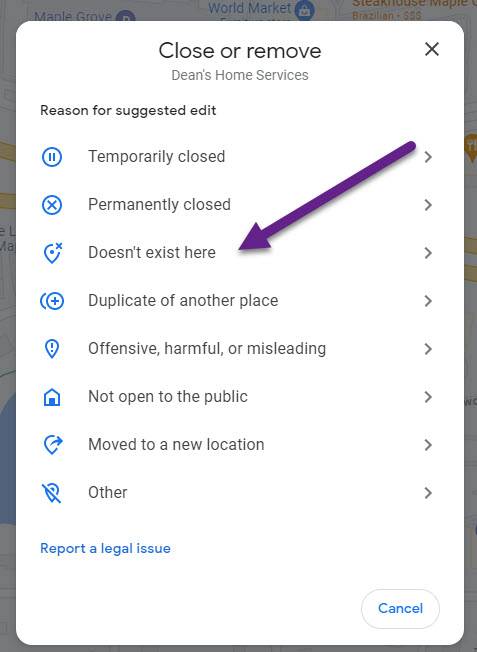
After marking your business as permanently closed and removing all profile content and managers, the next step is to report the business profile or suggest an edit to indicate that it no longer exists. This helps ensure that the profile is removed from Google Maps and Search and that no outdated information remains available.
Go to Google Maps or Google Search and search for your business name. Locate the business profile that you want to remove from the search results. Click on the business profile to open the details.
On Google Maps, scroll down to the bottom of the profile and click on “Suggest an edit.” You will be prompted with several options. Choose “Place is permanently closed or doesn’t exist” from the list of options. Provide any additional information if required and submit the report.
On Google Search, click the “Feedback” link, typically found at the bottom of the search results page or near the business profile. Select “Report a problem” and choose “This business is closed or doesn’t exist.” Fill out any necessary details and submit the report.
Reporting the business profile or suggesting an edit helps expedite the removal process by notifying Google of the business’s status. It may take some time for Google to review and process the report, but this step is crucial in ensuring that the business profile is removed from Maps and Search.

Step 4: Wait at Least 24 Hours
After completing the steps to mark your business as permanently closed, remove all profile content and managers, and report that the company no longer exists, the final step is to wait. It is essential to allow at least 24 hours for Google to process and update the changes across its platforms.
During this waiting period, Google reviews the changes and updates its search results and maps to reflect the new status of your business profile. This process can take some time, as Google must verify the information and ensure all related data is accurately removed or updated.
It’s a good practice to periodically check Google Maps and Search to confirm that the business profile has been removed or correctly updated. If the changes do not appear after 24 hours, you may need to revisit the previous steps or contact Google My Business support for further assistance.

Final Thoughts
Removing a Google Business Profile from Maps and Search can be straightforward if you follow the correct steps. By marking your business as permanently closed, removing all associated content and managers, and reporting the profile as non-existent, you take essential actions to ensure that outdated or incorrect information is no longer visible to potential customers.
It’s crucial to allow at least 24 hours for Google to process and update these changes. This waiting period helps ensure your request is thoroughly reviewed and the profile is accurately removed from Google’s platforms.
If you encounter any issues or the profile does not update as expected, don’t hesitate to contact Google My Business support for assistance. By carefully following these steps, you can effectively manage and maintain the integrity of your online business presence, ensuring that only current and accurate information is available to your audience.


